
This article is for: Project Manager, Admin, Account owner
This feature is available in: Web app, Desktop app.
Budgets let you set a maximum amount of time, internal cost, or revenue for a project, then track actual usage against that limit. Find budgets under Analytics > Budgets. This feature requires a Project Time Tracking seat.
Contents
Info: You only see budgets that you created yourself, even if another person created a budget for the same project.
Add a budget
Follow these steps
- Navigate to Analytics > Budgets in the sidebar.
- Click Add budget.
- Enter a name and, optionally, a description for the budget.
- Select a budget type: Time to track hours, Internal cost to track internal cost, or Revenue to track external revenue, and enter a target, for example 100 hours or 1,000 euros.
- Select a scope: Projects – the whole project or specific activities within it (for example, only onboarding, not meetings), Users whose tracked time counts toward the budget, or Tags.
- Enter a start date. This defaults to today.
- Select an interval: One-time for a single fixed period, or Weekly or Monthly for a budget that resets at the start of each period.
- Enter an end date. For a one-time budget, this marks the deadline. For a repeating budget, this marks when the repetition stops.
- Select Add to create the budget.
Caution: Internal cost and revenue only include billable time. Internal cost uses the internal rate, and revenue uses the external rate, both set in your project settings. Learn more: How do I set up a project?
Understand budget status labels
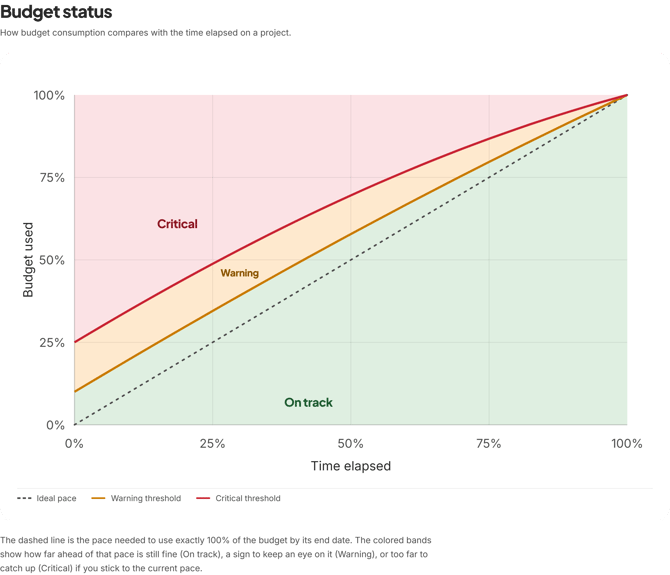
A budget in TimeTac is always tied to a timeframe. Budget status weighs how much of it has been used against how much of that timeframe remains, showing at a glance whether the current pace will land on budget by the end date.
| Status label | When it appears |
What it means |
| Critical | The budget is fully used, or spending is ahead of the ideal pace by more than the allowed head start — which is 25% at the start of the budget period and narrows to 0% by the end date. | You're likely to run out before the period ends |
| Warning | Spending is ahead of the ideal pace, but not yet far enough to be critical — the allowed head start is 10% at the start of the budget period and narrows to 0% by the end date. | You're ahead of pace and should keep an eye on it |
| On track | None of the above apply |
Spending matches the expected pace for this point in the period |
Two labels fall outside this pace logic. New appears when the budget period has just started and no time has been logged yet, and Expired appears once the end date has passed.
Manage your budgets
- Select Edit to change a budget's name, description, or settings.
- Select Duplicate to create a new budget with the same settings, without changing the original.
- Select Details to see the budget's name and project description.
- Select Refresh to update the list of budgets after tracking new time, for example from the calendar.
- Filter the list by type, interval, or status, or search for a budget by name.
You now know how to create and manage budgets in TimeTac.